
New Features
LEGAL RESEARCH
Select and download multiple documents at once
You can now select multiple documents from your search results and download them all in a single action, without having to open each one individually. This is available for Judgments, Regulatory Decisions, Journals, Commentaries, and Notices & Directions.
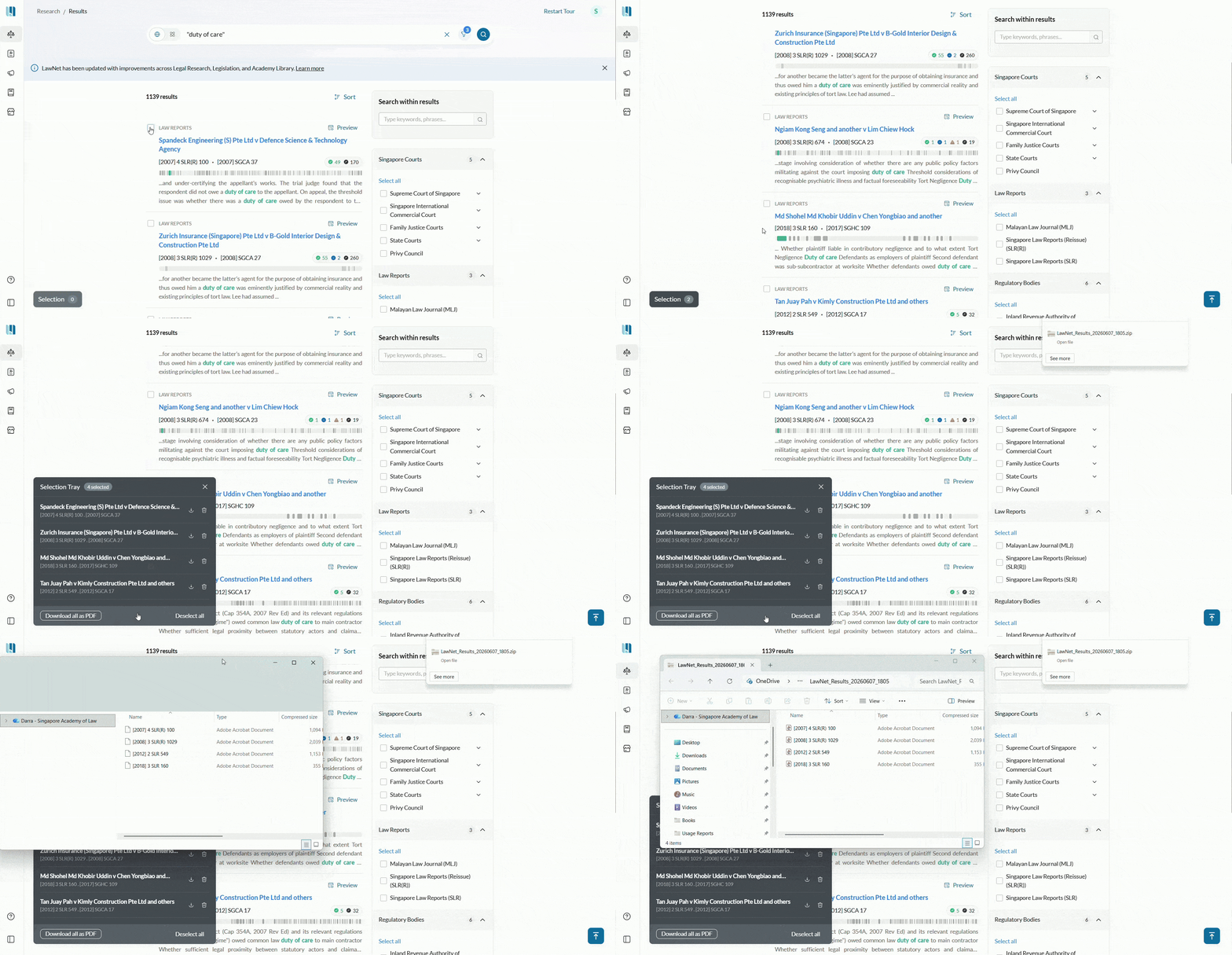
- Tick the checkbox on any result card
- Selected documents appear in a tray at the bottom-left of the screen showing the count
- Click ‘Download all as PDF’ to download everything as a ZIP folder named with the date and time
- You can download up to 50 documents at a time
- Your selection is preserved for the duration of your session, even if you run a new search
Regional Counsel Podcasts
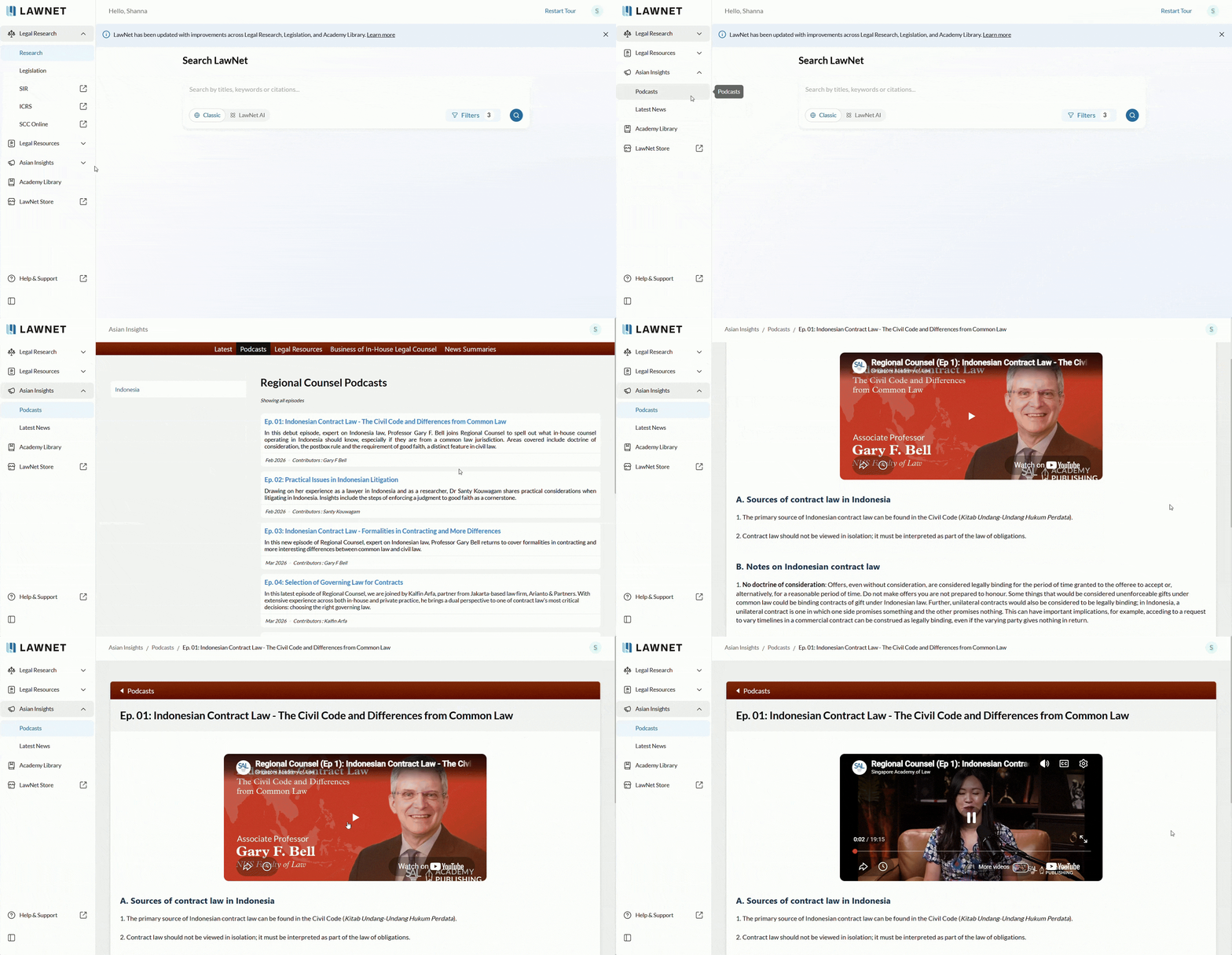
In-house counsels working across Asia can now access regional legal commentary and insights through the Regional Counsel Podcast series which is now available within LawNet.
Select ‘Podcasts’ under ‘Asian Insights’ in the left navigation menu. Each episode has a dedicated page with an embedded video player and summary of the episode so you can listen and read along.
Legislation
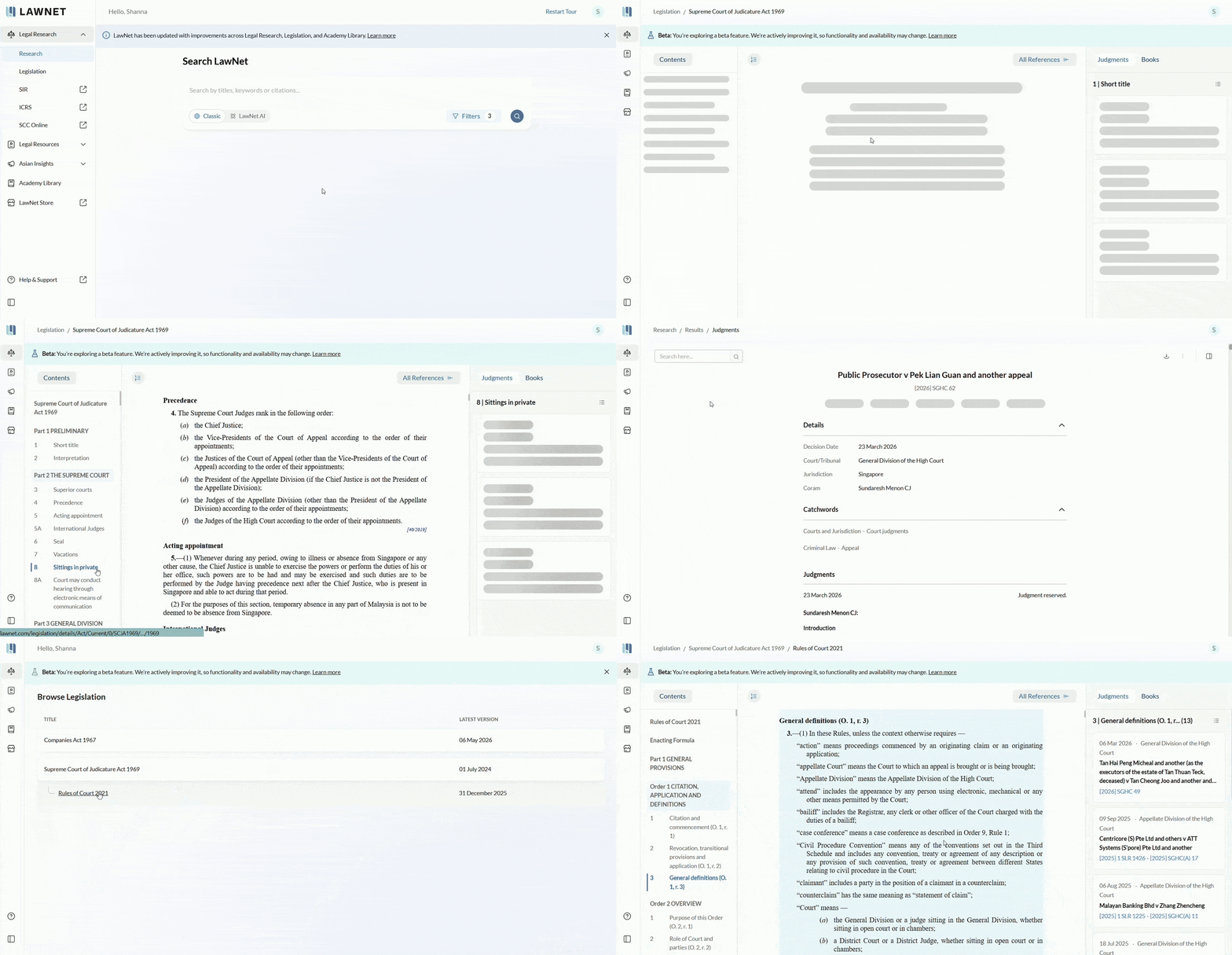
Browse Supreme Court of Judicature Act 1969 and Rules of Court 2021
Two significant pieces of legislation are now available in the upgraded Legislation module: the Supreme Court of Judicature Act 1969 and the Rules of Court 2021. View the full text of each legislation alongside a Table of Contents (TOC) and a right-side reference panel showing related Judgments and Books filtered to the specific section you have selected from the TOC.
Note that the Judgment references for the Rules of Court are limited to Judgments referencing the latest Rules of Court 2021 (in operation on 1 April 2022).
Academy Library
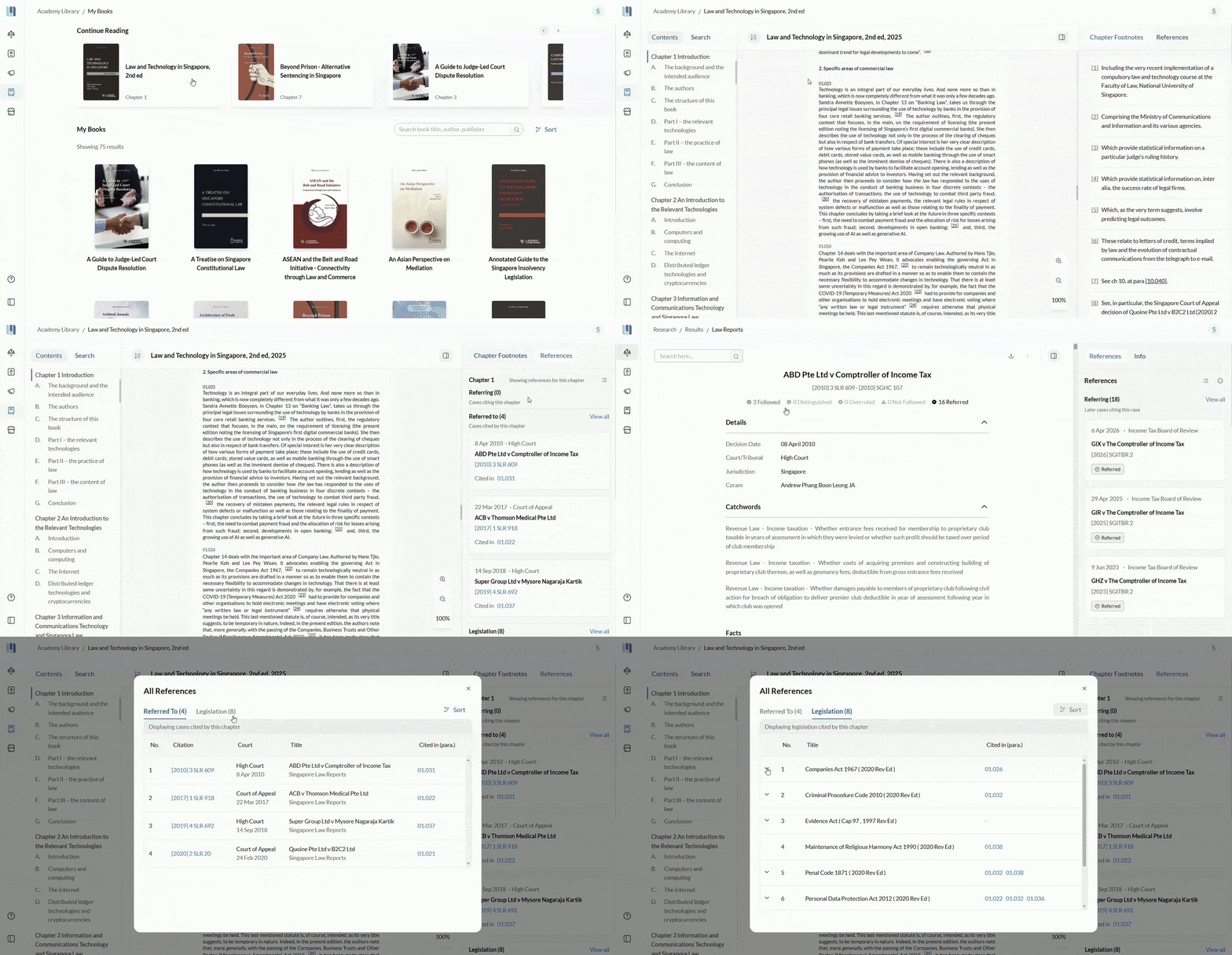
Your book collection
A ‘My Books’ section displays all books you have purchased or that are part of your Academy Library subscription. The ‘Continue Reading’ section shows the 10 books you most recently opened, so you can pick up where you left off.
You can search across your books by title, author, or publisher and sort by title (A-Z or Z-A) or by published date (newest or oldest first).
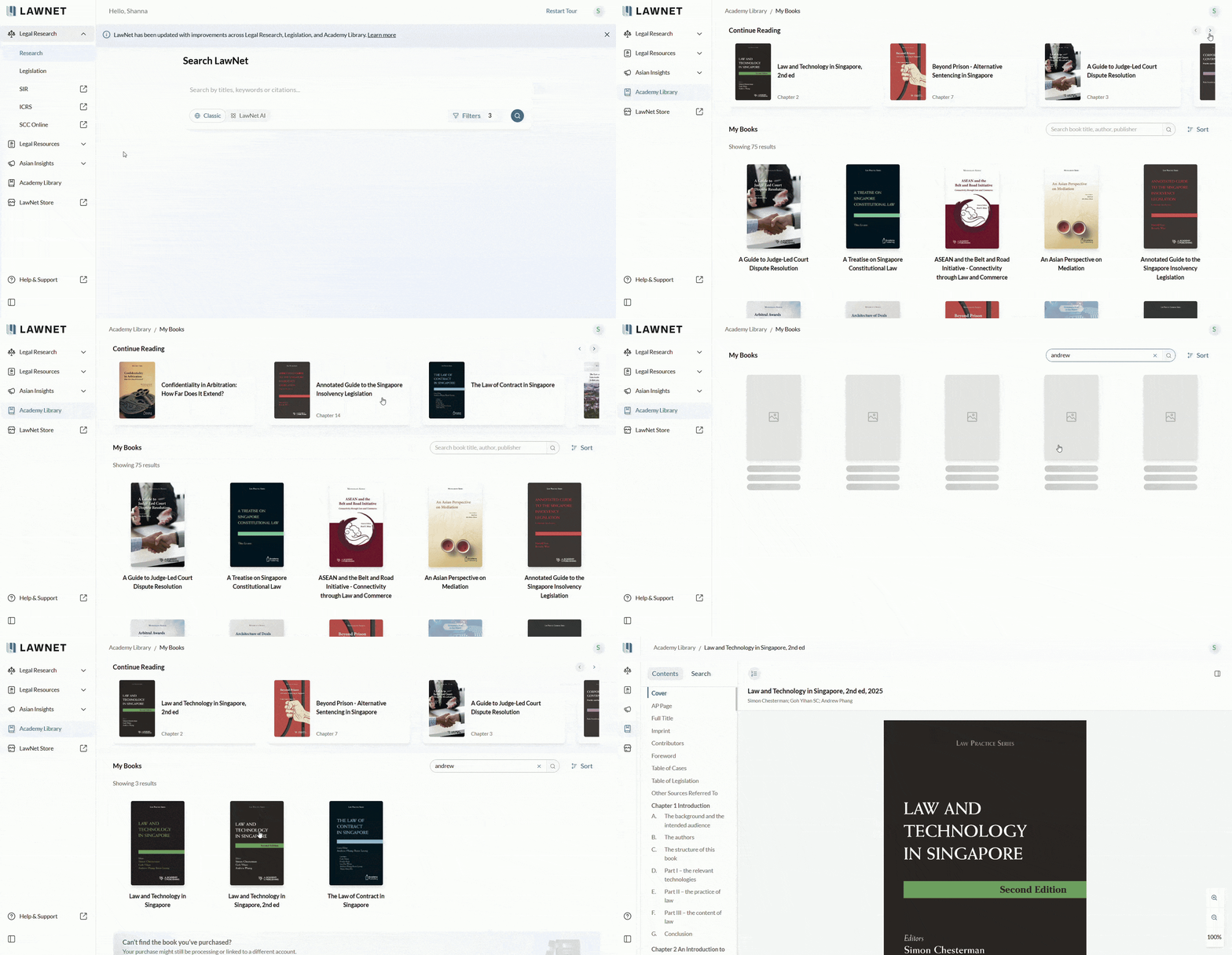
If you wish to perform keyword searches across books, we recommend doing so via Classic Search and selecting ‘Books’ in the Content Types filter.
Reading a book
Books open in a full reading interface with a Table of Contents on the left, the book content in the centre, and a References panel on the right.
Footnotes are clickable and jump to the corresponding entry in the right panel. Reopening a book from the ‘Continue Reading’ section returns you to the section where you left off.
References panel
The right-side panel shows cases and legislation cited in the chapter you are currently reading, and updates automatically as you move between chapters.
Click a case citation to open it in LawNet. Click a paragraph reference (if available) to jump to that location in the book.
Search within a book
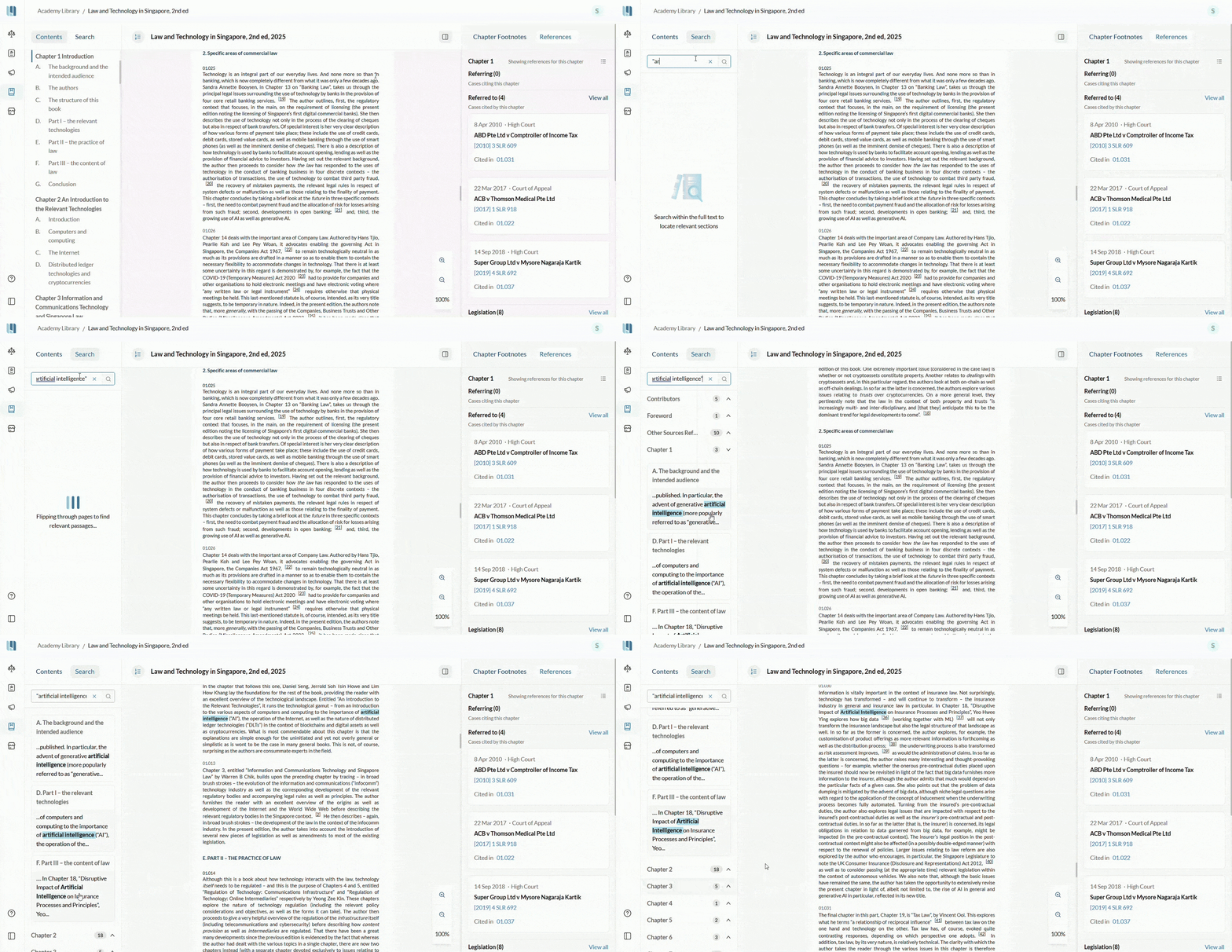
Use the Search tab on the left panel to find keywords within the full text of a book. Results are grouped by chapter and sorted in reading order. Click a result to jump to that passage, with your search term highlighted.
Improvements to Existing Features
Legal Research: Search & Filters
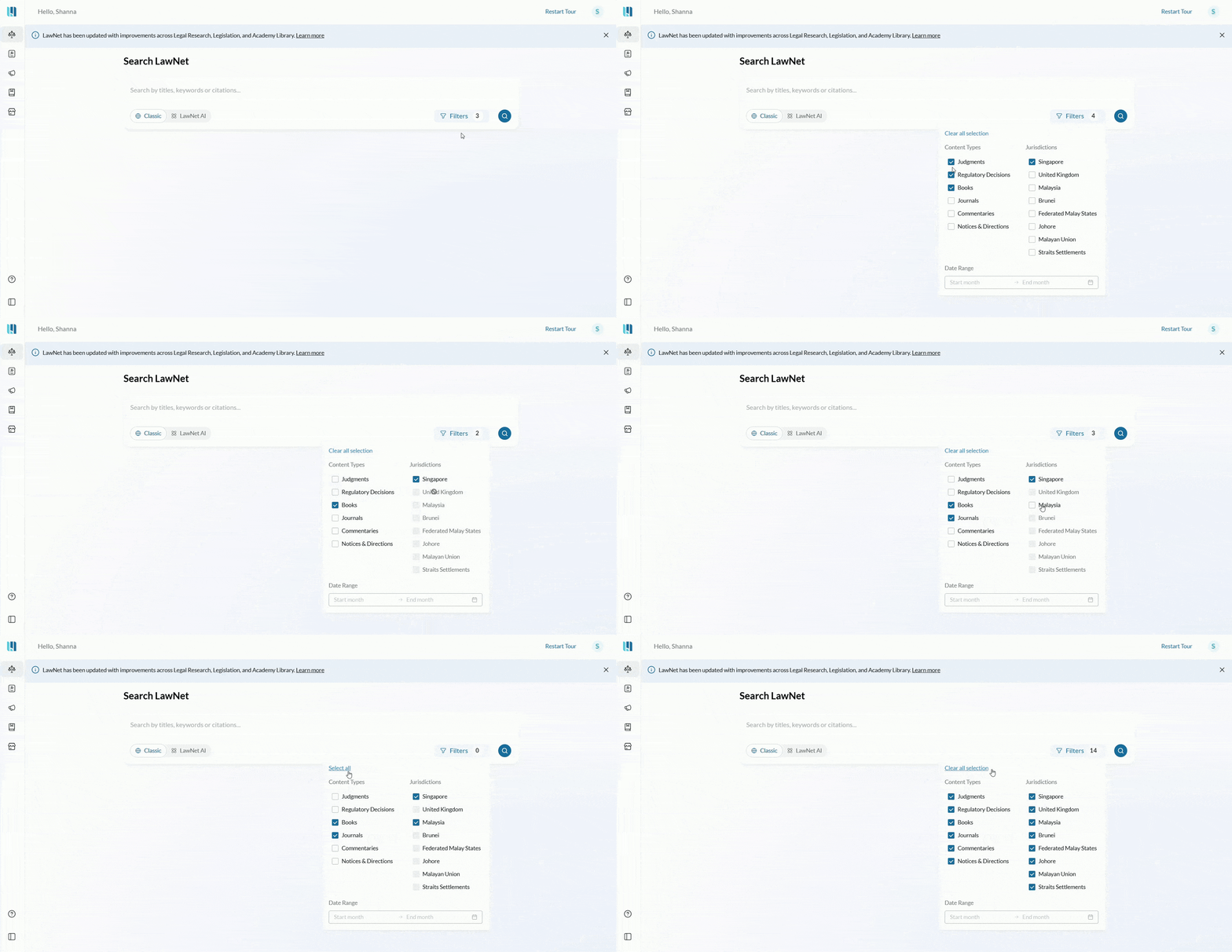
Filters now respond intelligently to your content type selection
In Classic Search, jurisdictions that are not applicable to your selected content types are now automatically greyed out and cannot be selected. If you change your content type selection, the jurisdictions update immediately.
You can also now reset all filters in one click with ‘Clear all selection’, or apply all filters at once with ‘Select all’.
Courts filter reorganised by hierarchy
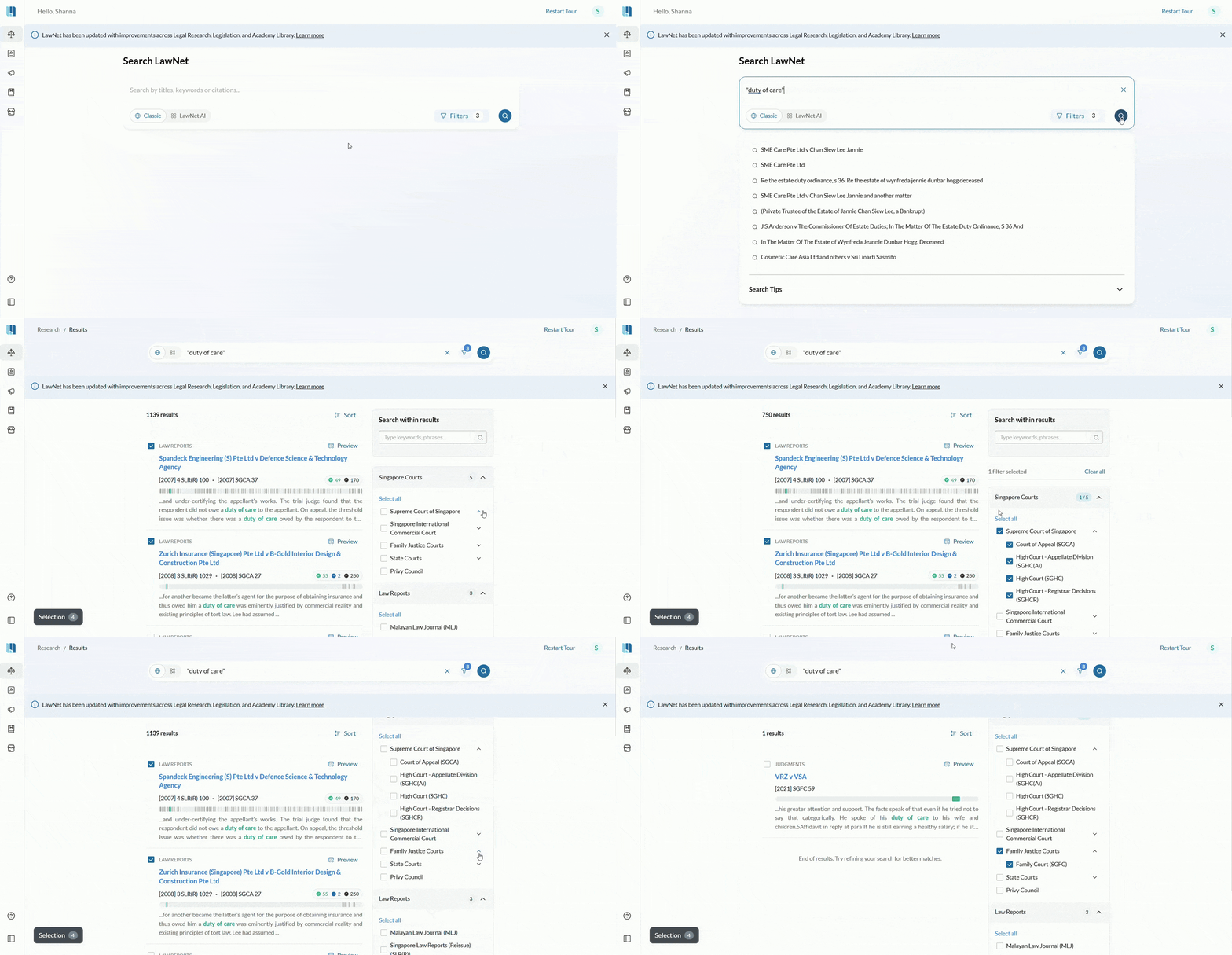
The Courts filter has been renamed to ‘Singapore Courts’ and reorganised, with sub-courts listed under their parent courts (Supreme Court of Singapore, Singapore International Commercial Court, Family Justice Courts, and State Courts).
SLR citations now appear before neutral citations
To be in line with Singapore court filing conventions, the Singapore Law Reports (SLR or SLR(R)) citation now appears before the neutral citation throughout LawNet. Making it easier to copy and paste citations directly into your submissions.
Legal Research: Documents
Improved formatting for Judgments and Decisions
Judgments and Decisions now have improved formatting across catchword segregation, heading styles, quote styling, and paragraph indentations, for better legibility across all document lengths.
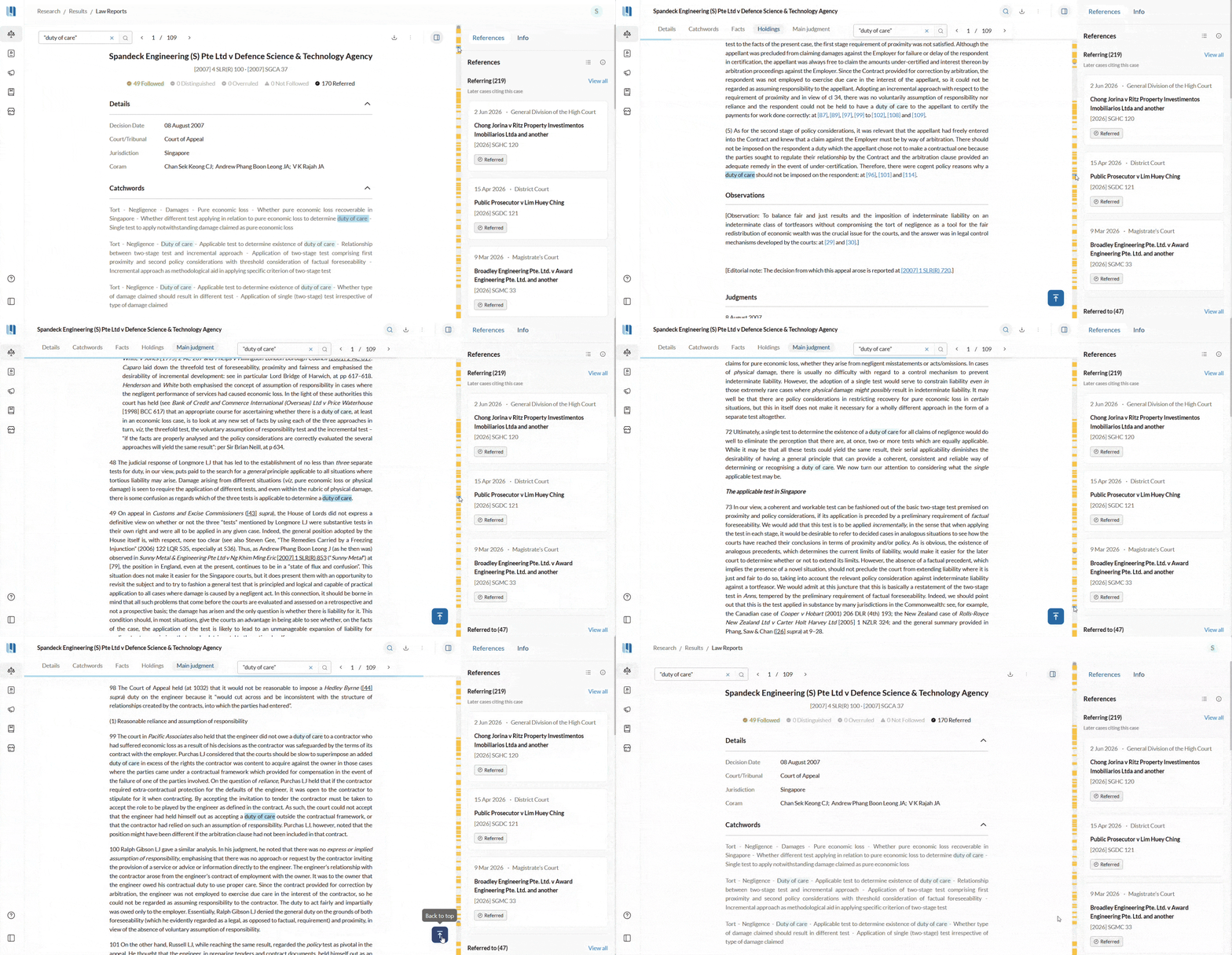
Navigate search hits within a document using the scrollbar
When you open a document after running a search, yellow markers on the right-side scrollbar indicate where your search terms appear. Click any marker to jump to that location. Use keyboard arrows or the navigation controls to move between hits one at a time.
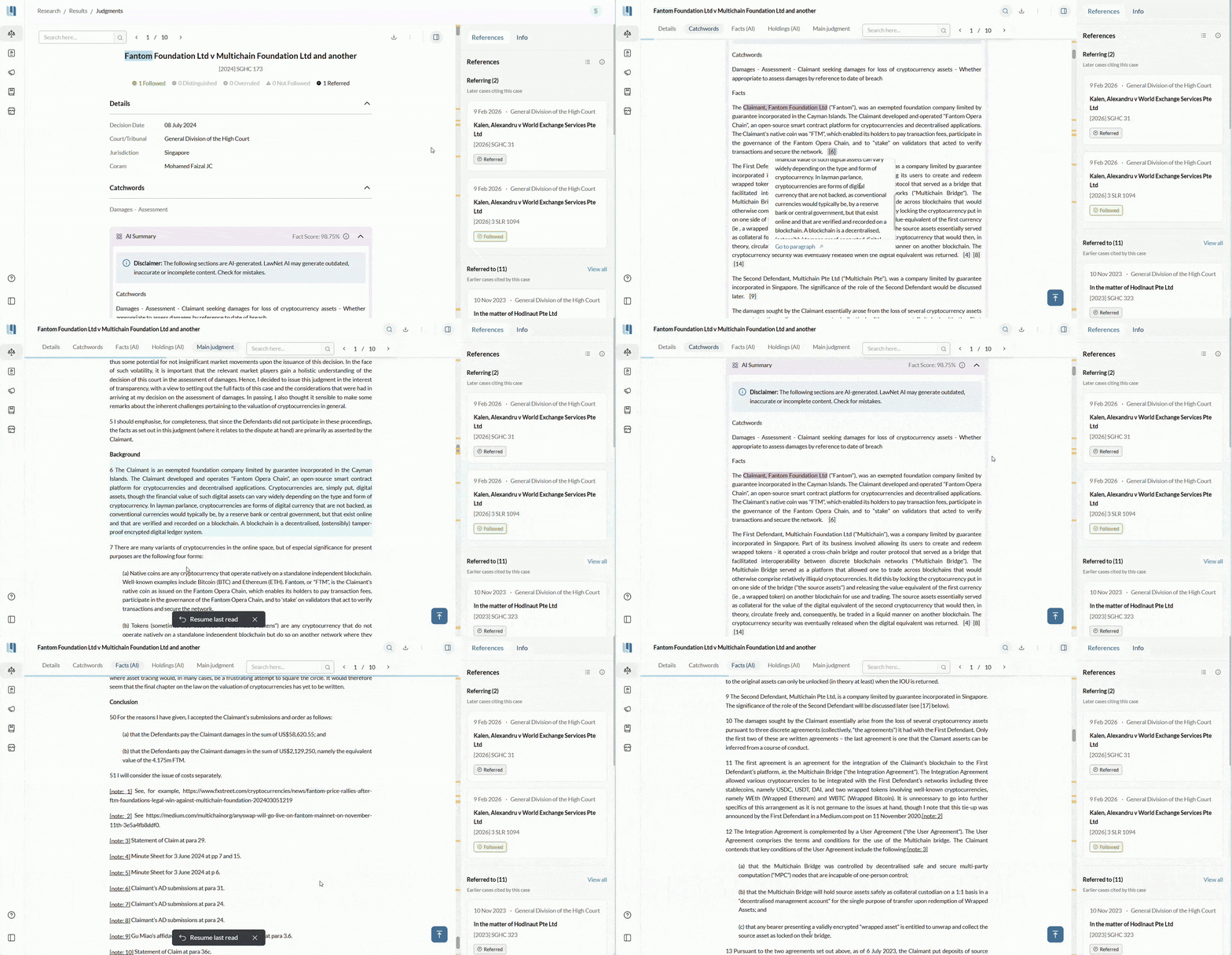
‘Resume last read’ button when jumping to footnotes or paragraphs
When reading a judgment or decision, clicking on a footnote or ‘Go to paragraph’ link now shows a ‘Resume last read’ button at the bottom of the screen. Click it to return immediately to where you were before. Dismiss it with the close icon if you do not need it.
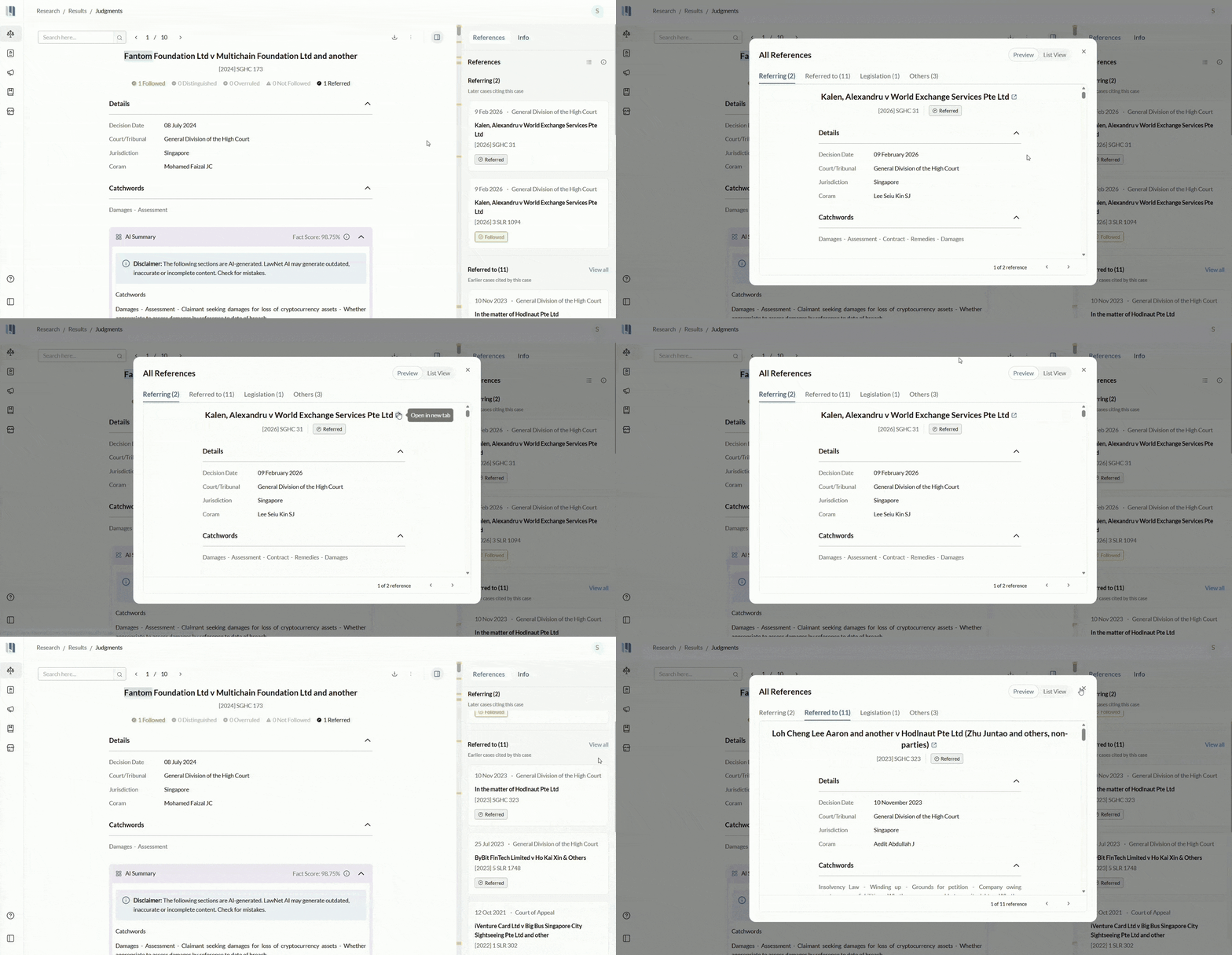
‘View all’ in the reference panel now at the top of each section
The ‘View all’ link in the right-side reference panel now sits next to each subsection heading (for example, beside ‘Referred to’ or ‘Legislation’) rather than at the bottom of the list. Clicking it opens a full table view of that specific subsection immediately.
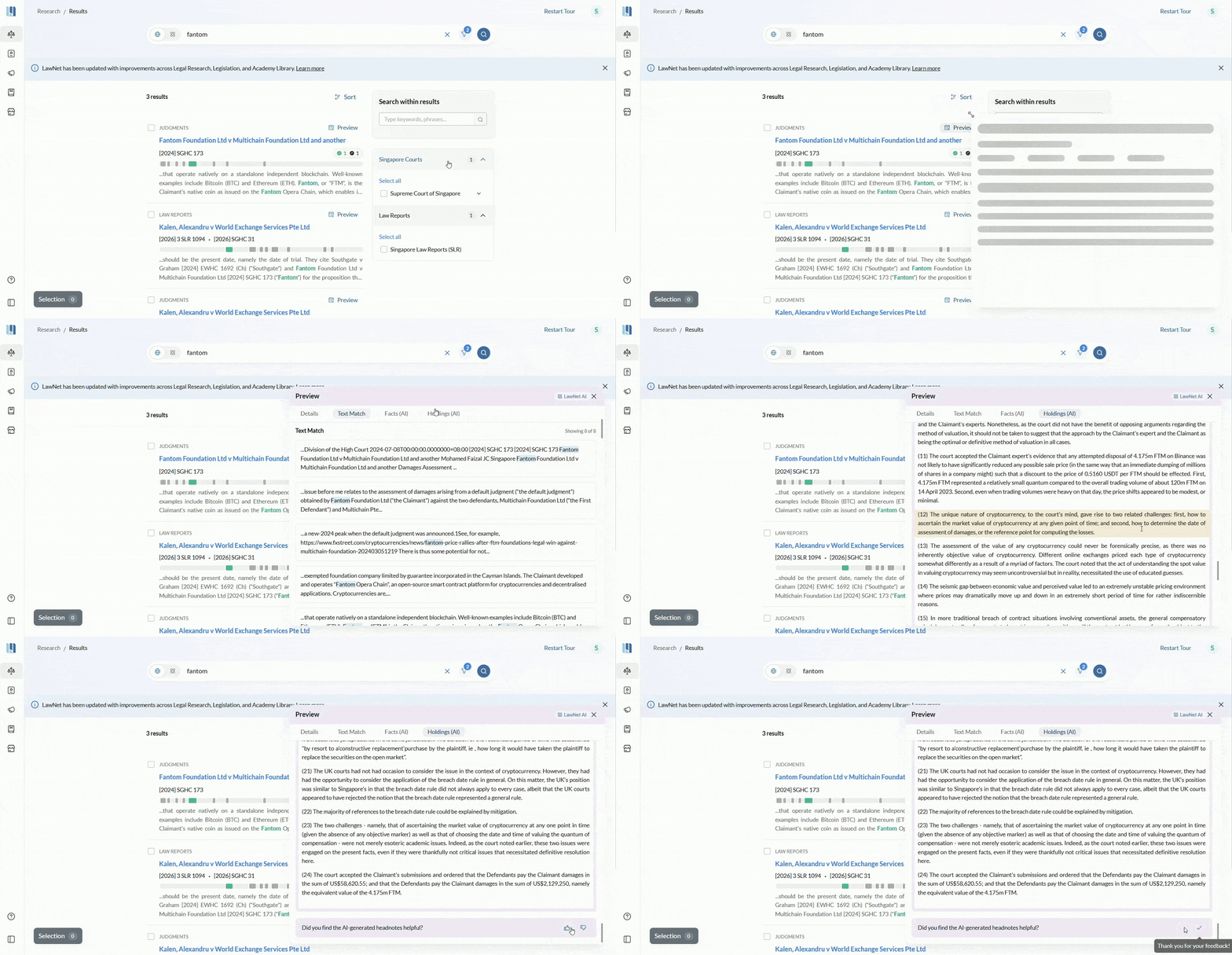
Rate AI summaries directly from the search results page
You can now give a thumbs up or thumbs down on AI-generated headnotes directly from the document preview panel, without needing to open the full document. A brief confirmation tooltip appears once your rating is submitted.
Legislation
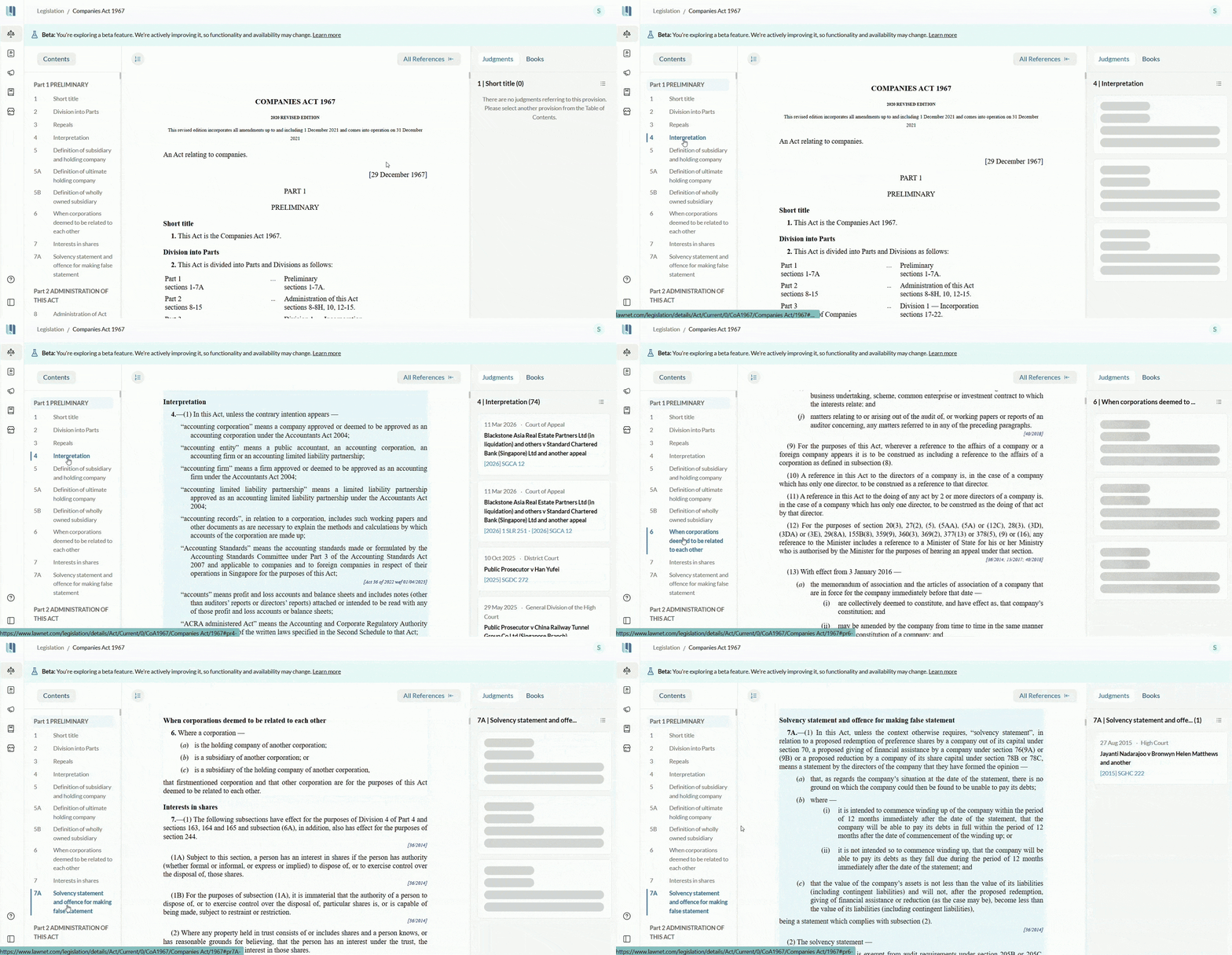
Improved navigation for Legislation References
Judgment and book references now load provisions one at a time, rather than all at once. This improves performance and makes browsing large sets of reference faster.
Open books directly from Legislation references
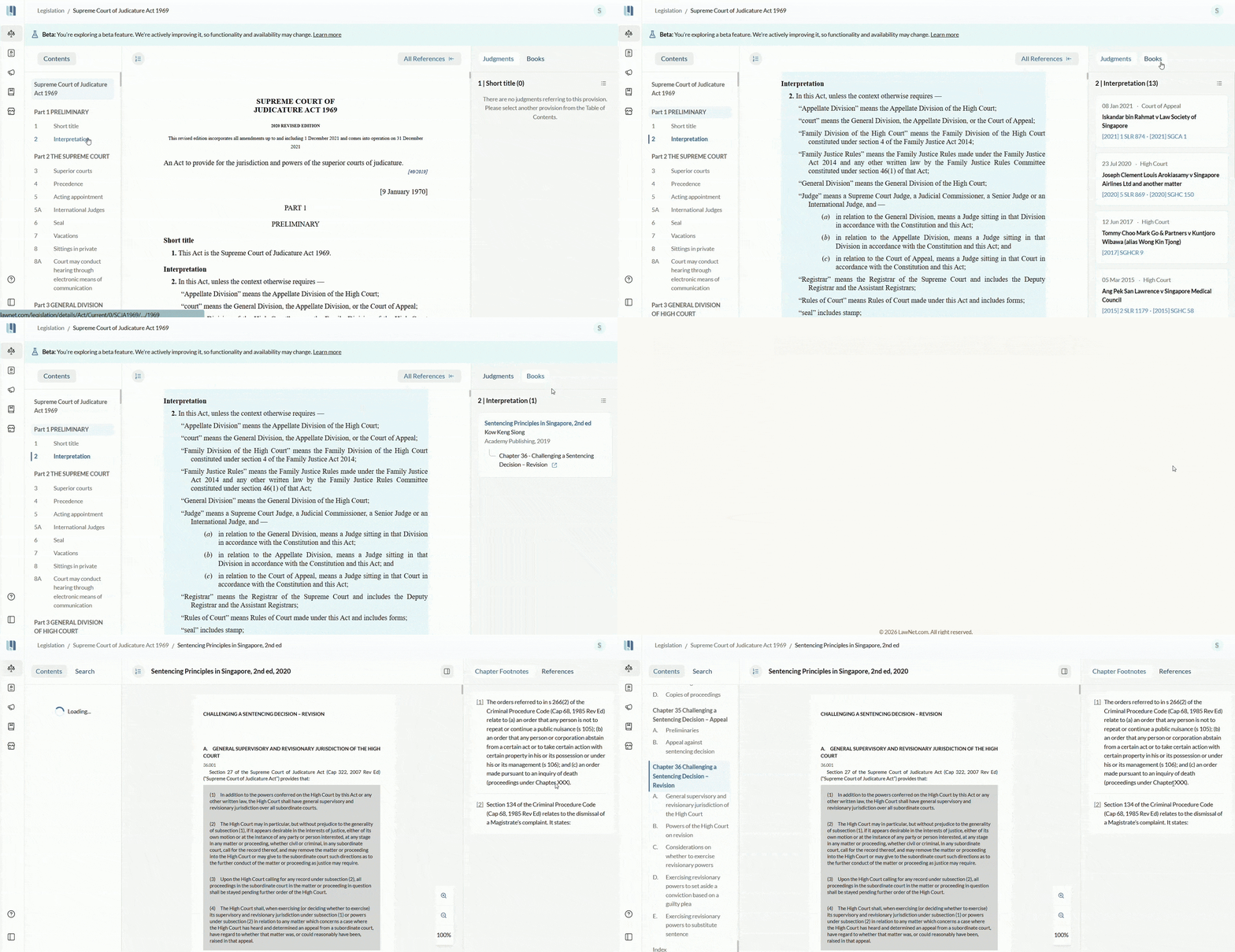
Clicking a book in the legislation reference panel now opens the full book content directly if you own the digital copy or have access to the Academy Library subscription.
General Improvements/Bug Fixes
Download unreported judgments with images
When downloading an unreported judgment that contained an image, only the image file was being downloaded instead of the full judgment. This has been fixed, so downloading an unreported judgment now correctly generates a PDF generated from the HTML of the judgment.
Multiple announcements now displayed in a single banner
When there are multiple platform announcements, they now appear in a single rotating carousel banner rather than stacking separately. You can navigate between them using the arrow buttons or let the carousel advance automatically every 8 seconds. Click the close button to dismiss all at once.
Character counter added to AI feedback comments
When leaving a written comment as part of AI search feedback, a counter now shows how many characters you have typed out of the 500-character limit. The input stops accepting new text at the limit, though you can still edit or delete existing text.
Browse Legal News & Insights without logging in
You can now explore LawNet’s Asian Insights section without signing in first so you can quickly check whether there is a relevant commentary on a topic. Content includes legal commentary, news, and podcast episodes. Free content is immediately accessible while premium articles will prompt you to log in.
Feedback & Support
We are constantly working to enhance LawNet. If you encounter issues or would like to share feedback, please contact us at [email protected].